How to use the pen tool in photoshop to delete background?
What Is the Pen Tool and Why Is It Important?
Before you start removing a background in Photoshop, it’s important to understand what the Pen Tool is and why it’s widely used by professional editors and designers.
The Pen Tool is one of the most precise selection tools available in Photoshop. It allows you to create accurate paths around a subject, making it ideal for separating objects from their backgrounds. Unlike automated selection tools, the Pen Tool gives you full control over every edge and curve, helping you achieve clean and professional-looking cutouts.
This level of accuracy is particularly useful when working with product photos, portraits, and other images that require smooth, natural edges. When used correctly, the Pen Tool can create background removals that look seamless and realistic.
While Photoshop offers several ways to remove backgrounds, the Pen Tool remains the preferred choice for professionals because of its precision and reliability. As a result, photographers, graphic designers, eCommerce businesses, and website owners often rely on it for detailed image editing tasks.
Why Is the Pen Tool Important?
Provides exceptional accuracy when selecting subjects.
Gives complete control over curves, corners, and edges.
Creates clean and professional-quality cutouts.
Produces more reliable results than most automatic selection tools.
Ideal for product photography, portraits, logos, and complex shapes.
Benefits of Using the Pen Tool
Helps create realistic background removals.
Reduces unwanted background edges and imperfections.
Makes it easier to place subjects on new backgrounds.
Improves the overall quality of edited images.
Delivers professional results suitable for print, web, and eCommerce use.
In this guide, you’ll learn how to use the Pen Tool in Photoshop to remove backgrounds step by step. Whether you’re editing product images, designing marketing materials, or creating digital artwork, mastering this tool will help you achieve cleaner, sharper, and more professional results.
How Does the Photoshop Pen Tool Work?
Many people who are new to Photoshop wonder how to use the Pen Tool to remove a background. Although background removal may look easy, achieving clean and professional results requires a good understanding of how the Pen Tool works. It remains one of the most reliable tools for creating precise selections and producing high-quality image edits.
Unlike automatic selection tools, the Pen Tool gives you complete control over the selection process. By manually tracing the edges of an object, you can create an accurate path that separates the subject from the background with much greater precision.
When you zoom in on an image, you’ll notice that the boundary between the subject and the background is often only a few pixels wide. The Pen Tool is designed to follow this boundary as closely as possible. The path you create, commonly known as a clipping path, serves as the outline that defines which parts of the image will be kept and which parts will be removed.
Why Use the Pen Tool for Background Removal?
Provides unmatched accuracy and control.
Creates clean, sharp edges around the subject.
Produces more professional results than most automatic selection tools.
Works well for products, portraits, logos, and complex shapes.
Allows precise editing even when dealing with intricate details.
How It Works
Zoom in to clearly see the edge between the subject and the background.
Use the Pen Tool to place anchor points along the object’s outline.
Connect the points to create a smooth path around the entire subject.
Complete the path to form a closed shape, also known as a clipping path.
Convert the path into a selection for background removal.
The quality of the final result depends largely on how accurately the path is drawn. Taking the time to create a clean and precise clipping path will make background removal much easier and help you achieve professional-looking edits. That’s why learning to use the Pen Tool effectively is one of the most valuable skills for photographers, designers, and image editors.
Getting Your Image Ready for a Clipping Path with the Pen Tool
First, open your image in Photoshop. Next, go to the Paths panel and create a new path named “Path-1.” Once you select the Pen Tool, the Options Bar will appear at the top of the workspace. Before you start drawing the clipping path, make sure the following settings are selected:
Set Tool Mode to Path.
Choose Exclude Overlapping Shapes under Path Operations.
Enable the Rubber Band option from the Gear menu.
Turn on Auto Add/Delete.
After applying these settings, you’re ready to start creating the clipping path around your subject.
How the Pen Tool Creates Accurate Paths?
To create a clipping path around an object, start by choosing a point along the edge of the subject as your starting position. Zoom in on the image for greater accuracy, then use the Pen Tool to place your first anchor point along the boundary between the foreground and background.
Follow these steps to create an accurate clipping path:
Choose a starting point on the edge of the object you want to isolate.
Zoom in closely to clearly see the boundary between the subject and the background.
Click and drag to create anchor points with direction handles for smooth curves.
Continue placing anchor points around the entire outline of the object.
Use fewer points on straight edges and more points on curved sections for better control.
Keep curves smooth by adjusting the direction handles as you work.
Avoid placing anchor points directly on sharp corners. Instead, place one point just before the corner and another just after it.
Position corner points closer together when dealing with tighter or sharper angles.
Complete the path by connecting the final anchor point to the starting point, creating a closed shape around the subject.
A few important tips to remember:
The path should follow the object’s outer edge as accurately as possible.
Smooth, well-placed anchor points create cleaner and more professional results.
Using too many points can make the path difficult to edit and less natural.
Taking your time during path creation will reduce the need for corrections later.
By following these techniques, you can create clean, precise clipping paths that make background removal and other editing tasks much easier while maintaining a professional-quality finish.
Make Sure the Path Is Accurate, Then Create a Selection
Once you’ve finished creating the clipping path, it’s important to review it carefully before turning it into a selection. A quick inspection can help you catch any mistakes and ensure a clean, professional result.
When checking the path, pay attention to the following:
Make sure the path follows the edges of the product accurately.
Check whether any part of the product has been cut off by the path.
Look for areas where the path extends into the background and includes unwanted pixels.
Zoom in on detailed sections such as corners, curves, and edges to verify accuracy.
If you find any issues, you can easily adjust the path:
Hold Ctrl and click on the anchor point you want to edit.
Use the arrow keys (←, →, ↑, ↓) to move the selected point in small increments.
Adjust the position of the point until the path aligns perfectly with the edge of the object.
Repeat the process for any other points that need correction.
After you’ve reviewed and refined the entire path, convert it into a selection:
Make sure the path is active in the Paths panel.
Press Ctrl + Enter to convert the path into a selection.
Your clipping path is now ready for background removal or any other editing task that requires a precise selection.
Apply Feathering for a Smooth Blend Between the Subject and Background
Before applying feathering, it’s helpful to understand what it does and why it’s important. If you zoom in closely on the edge where the subject meets the background, you’ll notice that the transition isn’t completely sharp. Instead, the foreground and background naturally blend together over a few pixels.
Feathering recreates this soft transition by slightly blurring the edges of your selection. This helps the subject blend more naturally into a new background and prevents harsh, unnatural-looking edges after the background has been removed.
Why Use Feathering?
Creates a smoother transition between the subject and the background.
Helps prevent jagged or overly sharp edges.
Makes background replacements look more natural and realistic.
Improves the overall quality of the final edit.
How to Apply Feathering
Make sure your selection is active.
Press Shift + F6 to open the Feather Selection dialog box.
Enter the feather radius value you want to apply.
Click OK or press Enter to confirm the adjustment.
Tips for Better Results
Use a small feather value for images with sharp edges and fine details.
Increase the feather value slightly for larger images or softer subjects.
Avoid using excessive feathering, as it can make the edges appear blurry or unrealistic.
Applying the right amount of feathering can make a significant difference in the final result, helping your subject blend smoothly and naturally with any background.
Removing the Background and Finalizing the Image
Once you’ve applied feathering and are satisfied with the selection, it’s time to remove the background and create the final image.
Remove the Background
Make sure the selection is active.
Press Ctrl + J to duplicate the selected area onto a new layer.
Photoshop will create a new layer containing only the selected subject, separated from the original background.
In the Layers panel, click the eye icon next to the original layer to hide it.
You should now see the subject on a transparent background.
Keep the Background Transparent
If you need an image with a transparent background, your work is complete at this stage. Simply save the file in a format that supports transparency, such as PNG.
Add a New Background Color
If you’d like to replace the background with a solid color, follow these steps:
Click Create a New Layer in the Layers panel.
Drag the new layer below the subject layer and above the original image layer.
Select the new layer.
Fill it with your preferred color using the Paint Bucket Tool or the Fill command.
The new color will appear behind the subject, creating a clean and professional background.
Final Check
Before saving your image:
Review the edges of the subject to ensure they look smooth and natural.
Check for any remaining background artifacts.
Make any final adjustments if needed.
Save the image in the appropriate format for your project.
By following these steps, you can create a clean background removal with either a transparent background or a custom-colored backdrop, depending on your needs.
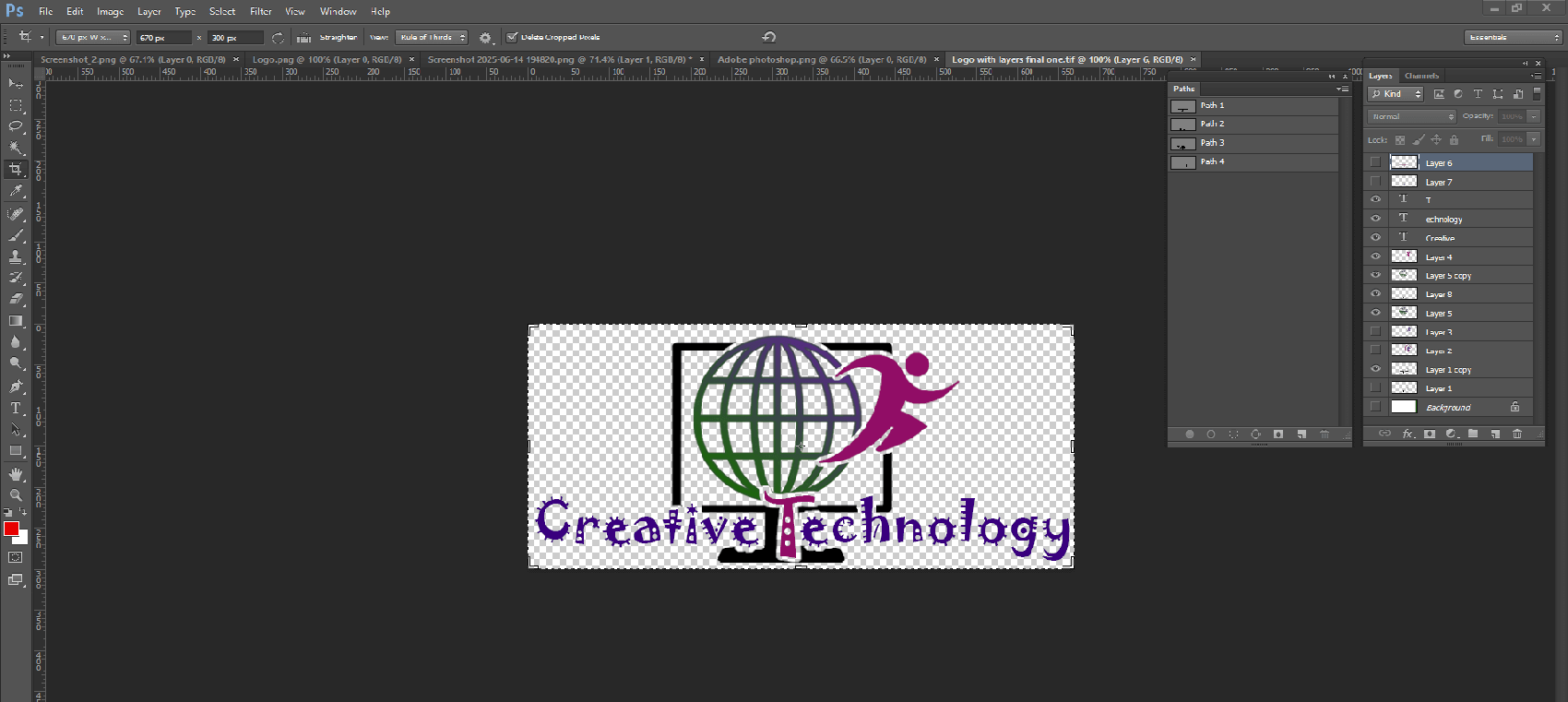
The final result of how to use the Pen Tool in Photoshop to delete background is shown above.
We hope this guide has helped you understand how to use the Pen Tool in Photoshop to delete background. If you still have any questions about background removal or other image editing techniques, feel free to contact us through our live chat. Our support team is always happy to help and will assist you at no cost.