
How to use the lasso tool on photoshop?
What Is the Lasso Tool in Photoshop?
Before learning how to use the Lasso Tool in Photoshop, it’s important to understand what this tool does and when to use it.
The Lasso Tool is a selection tool that lets you manually select specific areas of an image. After making a selection, you can edit, move, copy, or remove that part without affecting the rest of the image. It is especially useful when working with objects that have uneven, curved, or complex edges.
Photoshop offers three different Lasso Tool options, each designed for a specific type of selection task.
📦 Lasso Tool
What it is:
The standard Lasso Tool allows you to draw a selection freehand by clicking and dragging your mouse around an object.
Best for:
Irregular or organic shapes
Quick manual selections
Objects with curved edges
Advantages:
Complete control over the selection path
Fast for rough selections
Easy to use for simple editing tasks
📦 Polygonal Lasso Tool
What it is:
The Polygonal Lasso Tool creates selections using straight-line segments. Instead of drawing freely, you click to place anchor points around the object.
Best for:
Products with straight edges
Buildings and geometric objects
Creating precise angular selections
Advantages:
More accurate than freehand selections
Ideal for sharp corners and straight lines
Easy to adjust point by point
📦 Magnetic Lasso Tool
What it is:
The Magnetic Lasso Tool automatically detects and snaps to the edges of an object as you move your cursor around it.
Best for:
Subjects with clear contrast from the background
People, products, and objects with defined outlines
Faster edge-based selections
Advantages:
Automatically follows object boundaries
Reduces manual effort
Helpful for detailed selections with visible edges
Which Lasso Tool Should You Use?
Use the Lasso Tool when you need a quick freehand selection.
Use the Polygonal Lasso Tool when selecting objects with straight edges and corners.
Use the Magnetic Lasso Tool when the object stands out clearly from the background and you want Photoshop to help detect the edges.
How to Use the Lasso Tool on Photoshop: A Step-by-Step Guide
Step 1: Open Your Image in Photoshop
Start by launching Photoshop and opening the image you want to work on.
Click File > Open from the top menu.
Browse your computer and select the image you want to edit.
Click Open to load the image into Photoshop.

Magnetic Lasso Tool Settings in the Top Options Bar
📦 Width
What it does:
The Width setting determines how far Photoshop looks from your cursor to detect an edge while you make a selection. This value is measured in pixels.
Recommended tip:
Use a lower width setting when working with detailed objects or fine edges, as it provides more accurate edge detection.
📦 Contrast
What it does:
Contrast controls how much difference in color or brightness Photoshop needs to identify an edge.
Recommended tip:
For most images, a contrast setting between 10% and 20% delivers reliable results. Increase the value if your subject has strong, well-defined edges.
📦 Frequency
What it does:
The Frequency setting determines how often Photoshop automatically places anchor points along the selection path.
Recommended tip:
A higher frequency creates more anchor points, making it easier to follow complex shapes and detailed outlines accurately.

Step 3: Select the Appropriate Lasso Tool
📦 Choose Your Lasso Tool
In the Photoshop Toolbar on the left side of the screen, click and hold (or right-click) the Lasso Tool icon to display the available selection tools. You’ll see three different options:
Lasso Tool – Creates freehand selections by drawing around an object manually.
Polygonal Lasso Tool – Creates selections using straight-line segments, making it ideal for objects with sharp edges.
Magnetic Lasso Tool – Automatically detects and follows object edges as you move your cursor around the subject.
💡 Keyboard Shortcut:
Press L to activate the Lasso Tool. To switch between the different Lasso Tool variations, press Shift + L until the Magnetic Lasso Tool is selected.

Step 4: Use the Magnetic Lasso Tool to Detect Edges Automatically.
📦 Click to Set the Starting Point
Begin by moving your cursor to the edge of the object you want to select.
Click once to place the first anchor point.
This starting point tells Photoshop where the selection path should begin.
Make sure you start on a clear edge for the best results.
📦 Follow the Edge of the Object
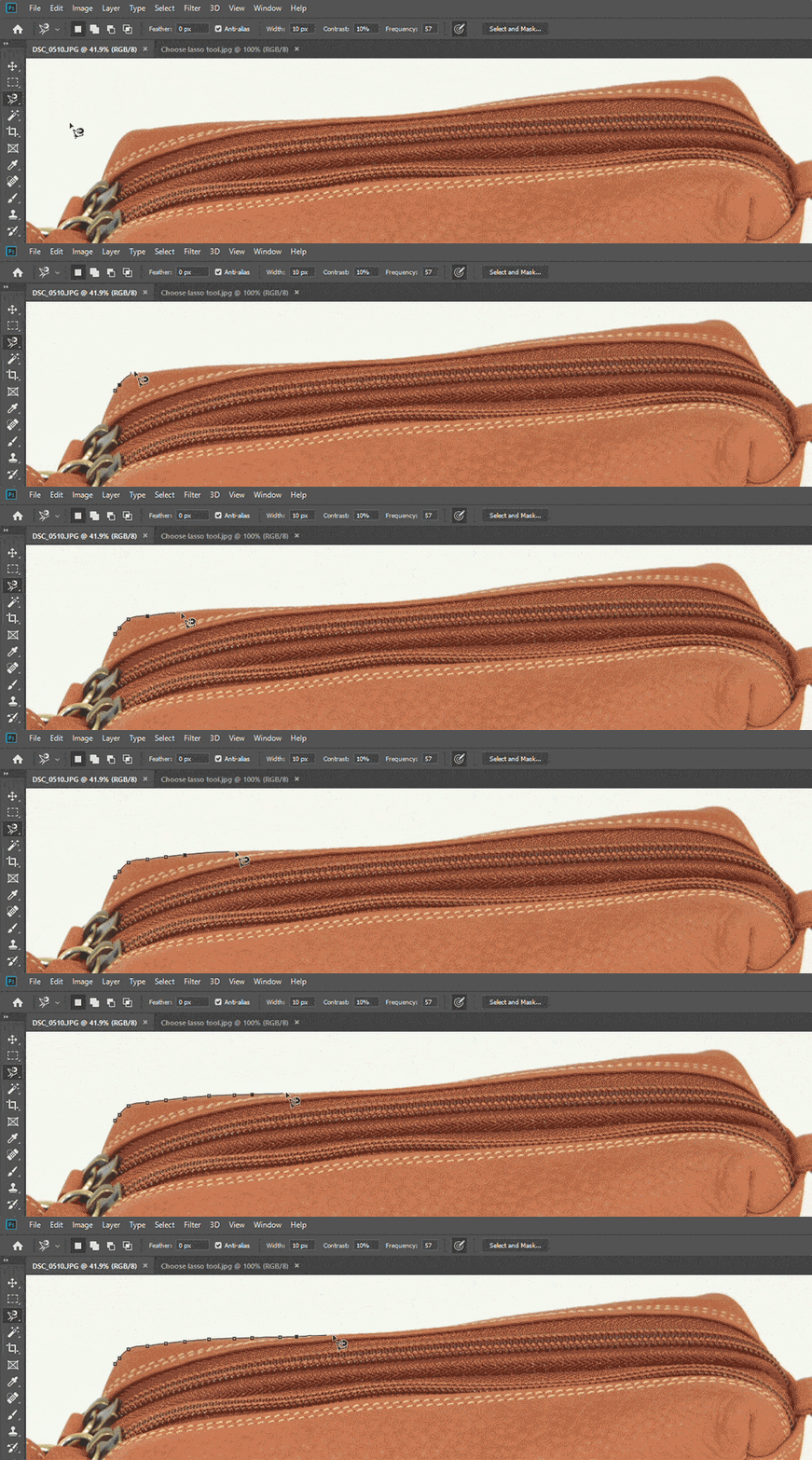
After placing the starting point, slowly move your cursor around the object’s outline.
As you move, the Magnetic Lasso Tool automatically detects the contrast between the object and the background.
Photoshop will place anchor points along the edge without requiring you to click repeatedly.
The tool continuously snaps to what it identifies as the object’s boundary, making the selection process faster and more accurate.
💡 Tip: Move your cursor slowly around detailed areas to help Photoshop detect edges more precisely and create a cleaner selection.
Step 5: Add Anchor Points Manually When Necessary
📦 Manually Add Anchor Points for Greater Precision
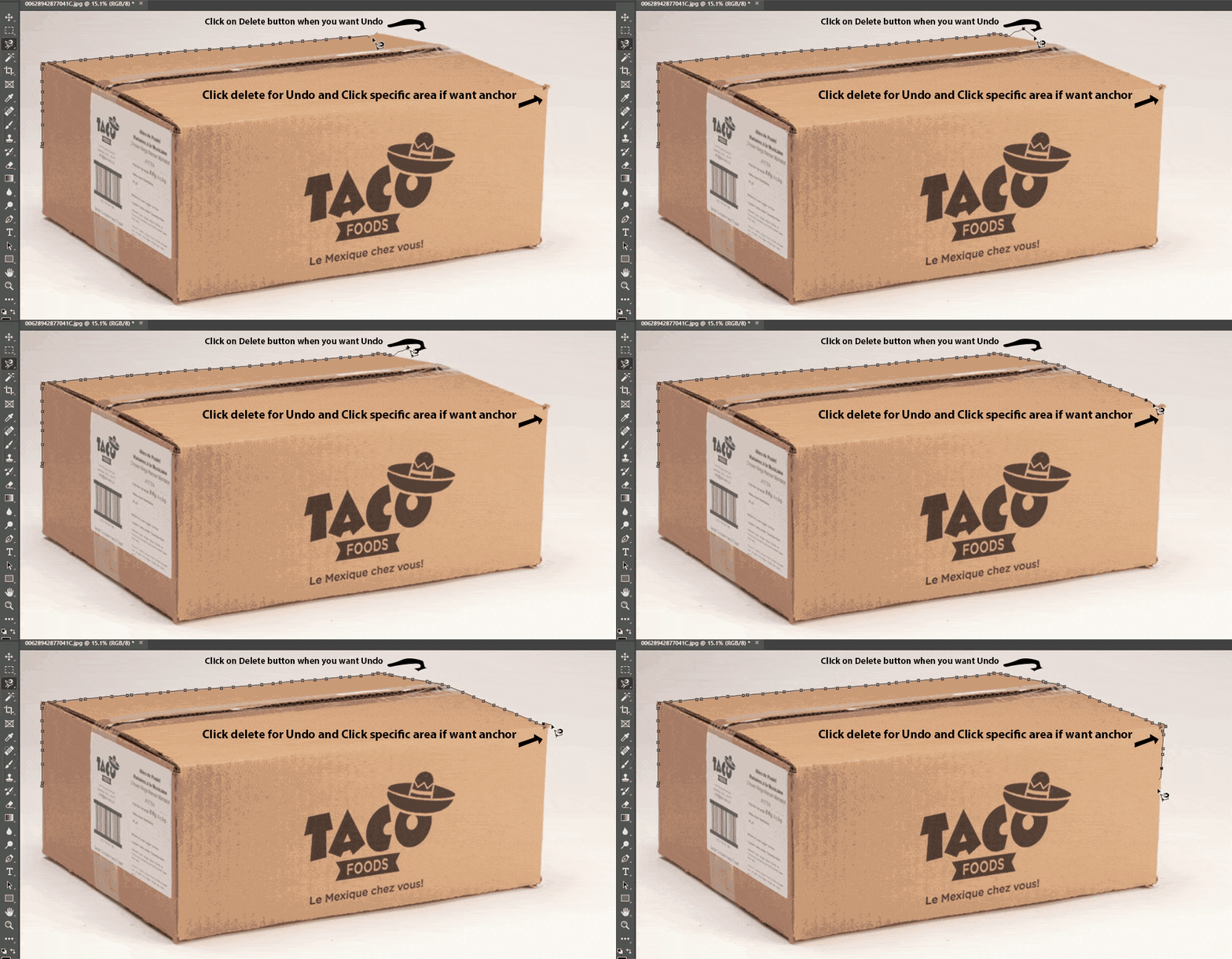
While the Magnetic Lasso Tool automatically follows edges, it may occasionally miss small details, corners, or complex areas.
If this happens, simply click manually to add an anchor point exactly where you need it.
Manual anchor points help guide the selection path and keep it aligned with the object’s edge.
This is especially useful when working with sharp corners, tight curves, or intricate details where automatic edge detection may not be completely accurate.
💡 Tip: Adding a few manual anchor points in difficult areas can significantly improve the accuracy of your final selection.
Step 6: Remove the Last Anchor Point if You Make a Mistake
📦 Undo Incorrect Anchor Points
If the Magnetic Lasso Tool places an anchor point in the wrong location, you can quickly remove it and continue your selection.
Press Delete on Windows or Backspace on Mac to remove the most recently added anchor point.
If multiple anchor points were placed incorrectly, continue pressing the key to remove them one at a time.
This allows you to backtrack and correct your selection without having to start over.
💡 Tip: Regularly checking your selection path and removing misplaced anchor points can help you achieve a cleaner, more accurate result.
Step 7: Complete Your Selection
📦 Complete and Activate the Selection
Once you’ve traced around the entire object, it’s time to close the selection and make it active.
Move your cursor back near the starting anchor point. When a small circle appears next to the cursor, click to close the selection path.
You can also double-click anywhere along the path to have Photoshop automatically complete the selection.
Another quick option is to press Enter (Windows) or Return (Mac) to finish the selection.
After the selection is completed, Photoshop displays the familiar “marching ants” outline around the selected area, indicating that the selection is now active and ready for editing.
💡 Tip: Before making any edits, zoom in and inspect the selection edges to ensure the outline accurately follows the object.

Step 8: Apply Feathering for a Smoother Selection
📦 Apply Feathering for Smoother Edges
After completing your selection, you can soften its edges to create a more natural-looking result.
Press Shift + F6 to open the Feather Selection dialog box.
Enter a feather radius between 0.3 and 0.4 pixels.
Click OK to apply the feather effect to the selection.
💡 Why Use Feathering?
Feathering softens the transition between the selected object and the surrounding background by blending a small number of pixels along the edge. This helps reduce harsh outlines and creates a smoother, more realistic selection, especially when removing backgrounds or making detailed cutouts.
Note: A subtle feather value, such as 0.3–0.4 pixels, is often enough to improve edge quality without making the selection appear blurry.

Step 9: Separate the Foreground from the Background
📦 Extract the Foreground onto a New Layer
Once your selection is complete, you can separate the selected object from the rest of the image.
With the selection still active, press Ctrl + J (Cmd + J on Mac).
Photoshop will automatically create a new layer containing only the selected object.
The original background will be removed from the new layer, leaving the foreground isolated on a transparent background.
💡 Tip: Check the Layers panel after using the shortcut. You’ll see a new layer that contains only the extracted subject, making it easier to edit, move, or place on a different background.

Step 10: Apply Your Desired Background Color
📦 Add a New Background Color
After isolating the foreground object, you can place a colored background behind it to complete the composition.
Create a new blank layer and position it between the original image layer and the isolated foreground layer in the Layers panel.
Press D on your keyboard to reset Photoshop’s foreground and background colors to the default black and white.
To fill the new layer:
Press Ctrl + Backspace to fill it with the background color (white by default).
Press Alt + Backspace to fill it with the foreground color (black by default).
💡 Tip: If you want to use a custom color, click the Foreground Color swatch in the toolbar, select your preferred color from the Color Picker, and then use Alt + Backspace to fill the layer instantly.
Once the color has been applied, your selected subject will appear on the new background, giving you a clean and professional final result.

We hope this guide has helped you understand how to use the Lasso Tool in Photoshop for accurate background removal. By following the steps above, you can use the Magnetic Lasso Tool to create precise selections and isolate subjects with minimal effort.
If you still have any questions about how to use the Lasso Tool in Photoshop, our team is available through live chat 24/7 and is happy to assist you at no cost.
You may also find these related Photoshop tutorials helpful:
Explore these guides to learn additional techniques for creating accurate selections and professional-quality image edits.